
Potential Trouble & Proactive Alert Tickets
Standard Operating Procedure
|
Version |
Version 2 |
|
Purpose |
Guide T1 Support in handling Potential Trouble and Proactive Outage Alert tickets received from carriers — ensuring timely ticket creation, proper deal verification, customer notification, and accurate documentation. |
|
Task Source |
Carrier Notification |
|
Owner |
Aprilyn Capunitan — T1 Support Associate |
|
Approver |
John Martinez — T1 Manager |
1. Purpose & Scope
1.1 Non-Technical Overview
The purpose of this procedure is to guide Tier 1 Support Associates in handling Potential Trouble and Proactive Outage Alert notifications received from carriers. This procedure ensures our team can quickly verify affected deals, create accurate support tickets in HubSpot, notify customers proactively, and coordinate with carriers to resolve issues before they escalate into full outages.
1.2 Technical Scope
This procedure applies to all carrier-generated Potential Trouble and Proactive Outage Alert notifications. It covers deal verification using circuit ID, address, or IP information; ticket creation in HubSpot with standardized subject line formatting; Hetrix monitoring status capture and documentation; customer email outreach using approved HubSpot templates; and ticket escalation or closure based on customer response and deal eligibility criteria.
Figure 1 — End-to-end process flow for Potential Trouble & Proactive Alert tickets
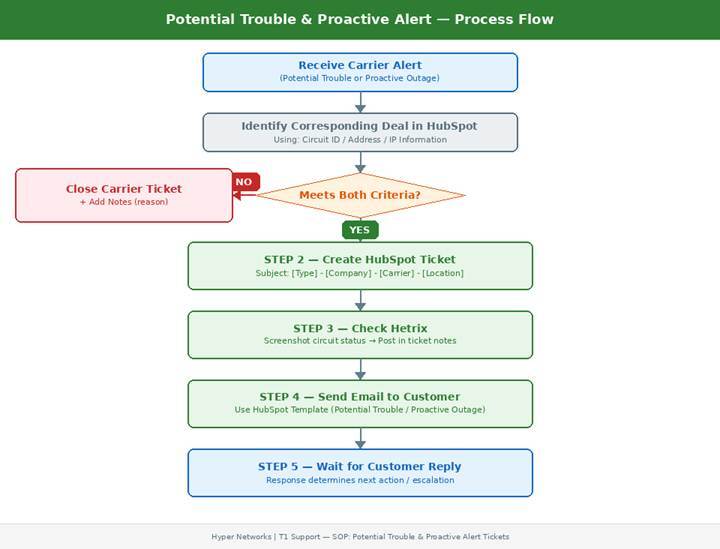
2. Process Flow Diagram
|
STEP 1 |
|||
|
Verify the Deal Against Carrier Ticket Once you receive a Potential Trouble or Proactive Outage Alert ticket from the carrier, identify the corresponding deal in HubSpot using the information provided by the carrier: Circuit ID, address, or IP information Confirm that the deal meets both of the following criteria before proceeding:
|
|
STEP 2 |
|
|
Create a Ticket in HubSpot Create a ticket in HubSpot using the appropriate subject line format based on the type of notification received from the carrier: For a Proactive Outage Alert: Proactive Outage Alert - [Company Name] - [Carrier] - [Location Name or Full Address] For a Potential Trouble Detected: Potential Trouble Detected - [Company Name] - [Carrier] - [Location Name or Full Address]
|
|
STEP 3 |
|
Check Hetrix & Capture Circuit Status Check if the deal is being monitored in Hetrix. If the circuit is in Hetrix, capture a screenshot of the circuit's current status and post it in the Notes section of the HubSpot ticket you created in Step 2.
|
|
STEP 4 |
|
Send Email to the Customer Send an email to the customer using the appropriate email template in HubSpot. Look for: • Potential Trouble Template • Proactive Outage Alert Template Use the template that matches the type of notification received from the carrier.
|
|
STEP 5 |
|
Wait for Customer Reply After sending the email, wait for the customer's reply before taking any further action. The customer's response will determine whether the ticket needs to be further investigated or escalated to the carrier.
|
|
STEP 6 |
|
|
|
|
72-Hour No-Reply Rule If the customer has not replied after the initial email in Step 5, apply the 72-hour no-reply rule as follows: 24th Hour — Send a first follow-up email to the customer. 48th Hour — Send a second follow-up email to the customer. 72nd Hour — Inform the customer that due to no response, the ticket will be closed. Then close the ticket. |
|
⚠ Disclaimer:
This Knowledge Base article may be revised at any time. Please ensure you are referencing the most current version.